
Showing posts with label tutorial. Show all posts

Introduction In this article, we will learn how to parse an HTML page using jsoup in Xamarin.Android, just like we used jsoup in ...

HTML Parser In Xamarin.Android Using jsoup HTML Parser In Xamarin.Android Using jsoup

tutorial


Introduction

In this article, we will learn how to parse an HTML page using jsoup in Xamarin.Android, just like we used jsoup in Native Java Android development.

jsoup

jsoup is a Java library for working with real-world HTML. It provides a very convenient API for extracting and manipulating the data, using the best of DOM, CSS, and jQuery-like methods.

jsoup for Xamarin.Android

In this article, we will see the Xamarin.Android binding or port Java jsoup and its implementations with the application. You can find the binding DLL of jsoup from GitHub or its package from NuGet. 

Coding Part

I have split this article into 3 steps.
Step 1 : Creating a new Xamarin.Android project.
Step 2 : Setting up the plug-in for Xamarin.Android application.
Step 3 : Implementing jsoup in Xamarin.Android application.

Step 1 - Creating new Xamarin.Android Projects
Create a new project by selecting New >> Project, and select Android App followed by a click on OK.
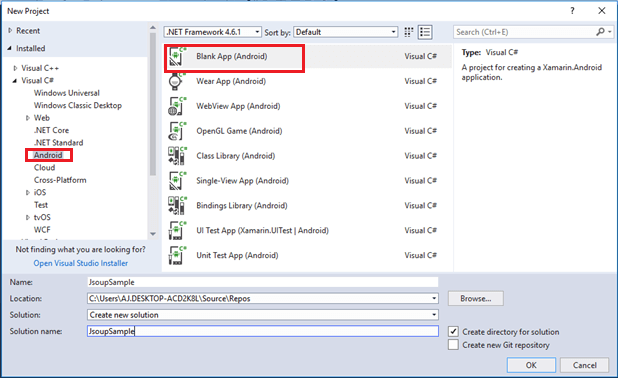
Xamarin
Step 2 - Setting up the plug-in for Xamarin.Android application
In this step, we will include the jsoup plug-in for Xamarin.Android Project. Open NuGet Package Manager against the project and do search for jsoup. Select the jsoup package from the list and click "Install" to add the library or paste the following in Package Manager Console to install the NuGet plugin.
Install-Package Jsoup -Version 1.0.0
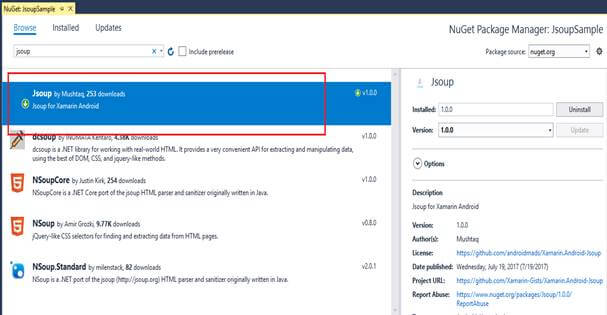
Xamarin
Step 3 - Implementing jsoup in Xamarin.Android application
In this part, we will see how to implement Jsoup to parse an HTML page or link.
  • Open your MainActivity.cs and paste the following code.
    Document doc = Jsoup.Connect("https://androidmads.blogspot.in/").Get();  
    Element link = doc.Select("img").First();  
    link.AbsUrl("src");
  • Here, the document used to make the web page is given as a singles file or document.
  • Consist of Elements and TextNodes.
  • Document extended from Elements or Nodes and TextNodes are extended from Nodes.
  • In the above example, the page from https://androidmads.blogspot.in link is retrieved and assigned to Document.
  • Then the Image tagged Elements (<img />) are retrieved from the document and I have getting the first “img” tag using “Select("img").First()”. By default, “doc.Select("img")” will returns the list of element or Elements.
  • Then, I have separated or retrieved the source of the image tag element using “link.AbsUrl("src")”.
  • The Jsoup Connections needed to be run with separate thread. So, I had done the call with “AsyncTask”. You can find the full code below.
Full code of the MainActivity.cs
The following code shows how to implement jsoup in Xamarin.Android with AsyncTask.
[Activity(Label = "JsoupSample", MainLauncher = true)]  
    public class MainActivity : Activity  
    {  
        TextView textView;  
        protected override void OnCreate(Bundle savedInstanceState)  
        {  
            try  
            {  
                base.OnCreate(savedInstanceState);  
  
                // Set our view from the "main" layout resource  
                SetContentView(Resource.Layout.Main);  
  
                textView = FindViewById(Resource.Id.HtmlTextView);  
                new JsoupServerCall(this).Execute();  
            }  
            catch (Exception ex)  
            {  
  
            }  
        }  
  
        private class JsoupServerCall : AsyncTask  
        {  
            MainActivity activity;  
            public JsoupServerCall(MainActivity activity)  
            {  
                this.activity = activity;  
            }  
            protected override Java.Lang.Object DoInBackground(params Java.Lang.Object[] @params)  
            {  
                Document doc = Jsoup.Connect("https://androidmads.blogspot.in/").Get();  
                Element link = doc.Select("img").First();  
                return link.AbsUrl("src");  
            }  
  
            protected override void OnPostExecute(Java.Lang.Object result)  
            {  
                base.OnPostExecute(result);  
                activity.textView.Text = result + "";  
            }  
        }  
    } 
Download Code
You can download the full source code from the Github.

In this article, we will learn to load Base64 String Images into Images in Xamarin.Forms without using any External Plugins like FFMp...

Loading Base64 Images In Xamarin.Forms Loading Base64 Images In Xamarin.Forms

tutorial

base64

In this article, we will learn to load Base64 String Images into Images in Xamarin.Forms without using any External Plugins like FFMpeg Image Loader Plugin.
Base64 Images
Base64 is a group of similar binary-to-text encoding schemes that represent binary data in an ASCII string format by translating it into a radix-64 representation. The term Base64 originates from a specific MIME content transfer encoding. To know more about Base64 Click Here.
Platform Support
The approach used here is done with Portable Library. So, it supports all the 3 (Android, iOS, and UWP) Platforms supported by Xamarin.Forms.
Without much introduction, we will skip into the coding part of this article.
Steps
I have explained the method to load base64 image in Image with 3 steps as shown below.
Step 1 - Creating new Xamarin.Forms Projects.
Step 2 - Creating a user interface with Xamarin.Forms.
Step 3 - Implementing the functionality to load Base64 Image.
Step 1 Creating new Xamarin.Forms Projects.
Create New Project by Selecting New >> Project >> Select Xamarin Cross-Platform App and Click OK.
Xamarin

Then Select Android and iOS Platforms as shown below with Code Sharing Strategy as PCL or .NET Standard and Click OK.
Xamarin

Step 2 Creating a user interface with Xamarin.Forms
Add Image Control to your Page, and here, I am going to add the control in MainPage.xaml. You can paste the codes shown below to create user interface for your page.
  1. <?xml version="1.0" encoding="utf-8" ?>  
  2. <ContentPage xmlns="http://xamarin.com/schemas/2014/forms" 
  3. xmlns:x="http://schemas.microsoft.com/winfx/2009/xaml" 
  4. xmlns:local="clr-namespace:Base64" 
  5. x:Class="Base64.MainPage">  
  6.     <ContentPage.Content>  
  7.         <Image x:Name="xfImage" VerticalOptions="Center" 
  8. HorizontalOptions="Center" /> 
  9. </ContentPage.Content>  
  10. </ContentPage>  
Step 3 implementing the functionality to load Base64 Image
In Xamarin.Forms, we can assign the source for Images by many ways like File Path, Image URL, From Resource Folder or Stream of Image.
We can convert the Base64 string into Stream of Image. That is array of Bytes (byte[]). We will use this method to assign Base64 image to Image Controls using the following code.
  1. byte[] Base64Stream = Convert.FromBase64String(base64Image);  
  2. xfImage.Source = ImageSource.FromStream(() => new MemoryStream(Base64Stream));  
Full Code of MainPage.xaml.cs
  1. namespace Base64 {  
  2.     public partial class MainPage: ContentPage {  
  3.         string base64Image = "iVBORw0KGgoAAAANSUhEUgAAAHwAAAB8CAMAAACcwCSMAAAAZlBMVEUAAAD///+cnJz7+/vz8/MdHR329vbw8PBRUVHh4eEaGhqsrKzn5+dZWVnk5OQyMjLZ2dmOjo6ysrIoKCjR0dFiYmKjo6NKSkoNDQ3ExMQ4ODi5ubmHh4cWFhbLy8tBQUF6enpvb2/Qp8GOAAAFzUlEQVRogcWb56KyOhBFIyBFQUGkiQXe/yVvQPFQUvYEvN/+q7CYlMnMJGG7fyhm8pDrnZ71Mbd65cf6efLc/wPuhlXeRLf0wUZ6pLeoyauQ+gUkuFPd/ZRJlfr3yvkN3L20pRw8qGwvuP0g3K0aPXhQU4F8CB5aLxzd6WWFG8HDRNHPMqUJgNfCPRP0G++thNtHQ3SPP9pr4NfCHN2puBrDvWYdulOjansFvLqtZzN2qwzgtrUFupMl7XkZPGy3YjPWymadBB4TvYpar5gCrwEvTlFZ4/DjtuhORxT+A7aYLoD/hC2kL+E/YovoC/jlV2zGLjr483dsxp5qeLBiEdMrDVRwz/8lmzHfU8DvlDelLz/yX7SmusvhhIEe5XHYLRh2GOcRgX6UwWPUqT6s08SCUwK74zKWwFELmuUqFTYoPRLDwQX8JY4O6jNIt0Tw00P/IJcvWR53MThTHn9d9gdvoEezQAR+Nz1Ib5bwK/TgSxUPBmDQ9w1pB7gNffZDbndvANhzQ1A3wGvoMUuG/SiH3sKGuOYDd6FpVuiybxtLMiJ3AscMX6yJC4ELcj2BQ4b7+rKDg425aAzHhrquxzsl0Js+A/4Nb5AHynksIFKFefnmD25DD9y0+TbXCfSy9heODbcIqbQ44OpUf+EZ9P9GjX3LbjB4NsA97P8JAoeDIe8DBycnMtjh4d77jA4OZsPbWt6+4R44QLE+R/P6s9fD0Txh09HeZxAMXoq2neeM5T0cLoBs6OFY3+ls58AVkA19O9fL4fATnHP4+nb38FpOeuJwvKGA9Rxz1L3KisMJOVKhqaXudpQi1pHDKcU+nZ8hFQ4tDm8I/3/IMoa3CD3IOqfF4AytV6Eq4RMrhxGH057I5PSQZAafaxxOLIQUsrwhoNbm0x2z99RnJFkquWK6t+lwVjZL44OG+hZDODf+PsXHd4OXmMK59ZEV9Ju3rhfnkVmN2hjeKS2yNivMC3er4Gv1r+E7OPSYqTy//CiLipvp15+5kyHv2z3SqLWqZ8xHnG27Thhfq2PTFlhVYqSCw7F0ZdA+S56xIJK0w+ulIXpqDqfUW8/WVRXCnmqKJXcOR4NX7lrUO6O9wiNcuM45HIx8brN6q1R2lWHdX3P49QD88ZCA6E5ujVh/uHK4B5RRsqc2eps2vqW3iOcgbGdrY4CDcEdOrUA79CK7y1h0cX5GaPGRjhrjkz5d0qTnidHJI66ruj8vPTxQfmJuiOYKVOPuEPRwV/Uf8fYvKE8xnHz3XZmQd3qpT5CUUmTrXf7RweX1xxVt/rFdumxdP3BbtqpiVRilZFuUZ/sDl7V7azrOx6oUdvXwQPxx6m0FVGLLgi9cnDIZ+DWRhFXw1+4PLlpWXzR3LpfIieUjuCMYFqtm+ETLdk2dEVzQMe1mbEHE8JlGH/hiRpSKI01UufMVbtjEH7a25pFcgVT8UM3LPsMu+gAPHuLfN1E8bdfv1uB3O3PW6xu2+qLdv47zC3cmPvYBBKoENeN3n787ZH+7yJMxuVeXnaiajKi/OTzavB8vf4dNLZ9svIyODozg8XjMyY/vGSgYuZlxKW98ZmJcPyxbazMlY+8+Ll1PjqrQckYjZTsZPDTN1WGdQymcWDyla+a0Zwez4JTVTLOYcH4krfkle745tjiM98NzYf6ctYA7P6MvDx4sz0CiZ23I7GWxXHD68/QTui/IdUXnXsOVp9pFEm5RCE/8KlNHI/nC/ENy0Jp0HlEvSVwkgdv5hr6ulKUf0sP1z838/Fm6ASy/VqDK7CmK5HGw6kJFTq7lLvVQpfjKqySn1Qu8upKluURTr7rRcdPke7rrQ45lvImSWrpTZPqLU0b3prCbU8iVsZBufQrdGcMuy7kX0ryLwNt68DXB0ALH3g27KEeCc5cbW5FmJ2kfWTEh26BdDbXDOsluwlrt4ZYldUjLc+iXYm0vrvOk9c/7Q6/92W+TvI49eoJldCP38xUfmb/hPxbhSmN+ggQuAAAAAElFTkSuQmCC";  
  4.         public MainPage() {  
  5.             InitializeComponent();  
  6.             byte[] Base64Stream = Convert.FromBase64String(base64Image);  
  7.             xfImage.Source = ImageSource.FromStream(() => new MemoryStream(Base64Stream));  
  8.         }  
  9.     }  
  10. }  
The longest string shown here is the base 64 is encoded to the image
  • Convert.FromBase64String(base64Image) is used to convert base64 string byte[].
  • ImageSource.FromStream(() => new MemoryStream(Base64Stream)) is used to convert the byte[] to Image Stream and Stream is assigned to Image Control.

To avoid SSL Errors in Xamarin Forms , add the following snippet in your MainActivity.cs and Appdelegate.cs for Android and iOS Platforms...

How to avoid SSL Errors in Xamarin Forms How to avoid SSL Errors in Xamarin Forms

tutorial

To avoid SSL Errors in Xamarin Forms, add the following snippet in your MainActivity.cs and Appdelegate.cs for Android and iOS Platforms respectively. You can use the same for Xamarin.Android and Xamarin.iOS

This method bypasses the SSL Errors.